How to Stop Cam Site Notifications in Chrome and Firefox
If a cam site sends alerts after you close its tab, review notifications for that site in the browser profile that received the alert. Choose Block if you want to prevent another prompt. Check the website’s own settings separately if it also sends email or in-account alerts.
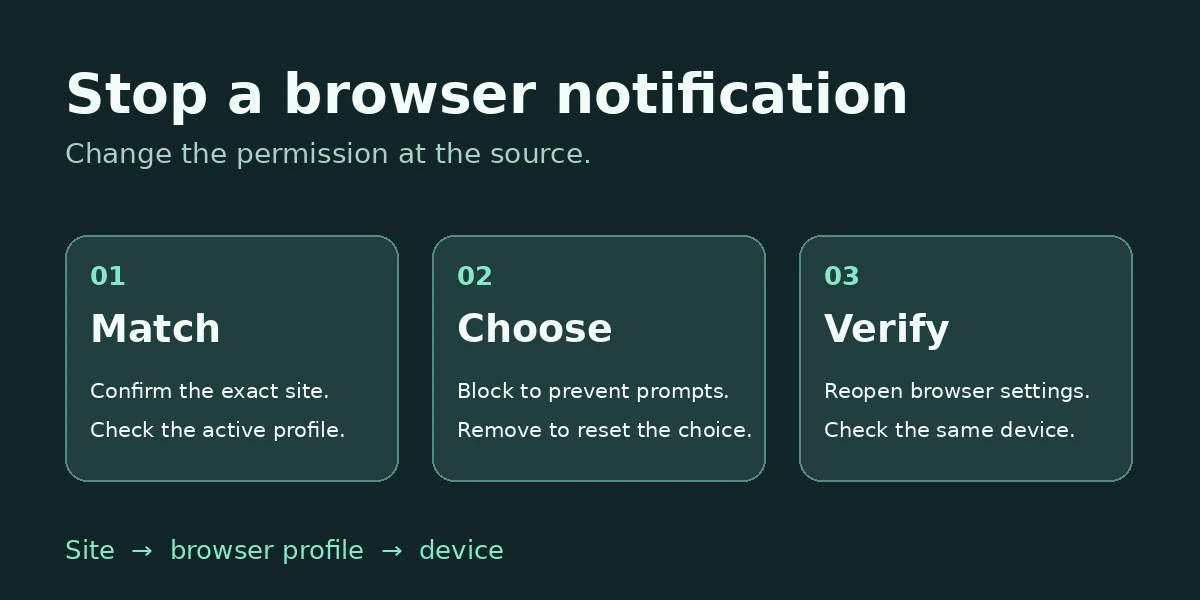
Identify the source before changing settings
On a shared screen, a banner can be more revealing than an open tab. Start with the app and domain that the operating system shows on the notification. Write down the domain without opening the banner if you do not recognize it. A browser notification, a message inside a web page and an email banner may look similar, but each has different controls.
Next, identify the browser profile. Two people can use Chrome on one computer with separate profile settings. If the site is absent from the permissions list you opened, check whether the alert came from a second profile or browser. A similarly named performer directory and a provider can also have separate origins. Compare the address, including subdomain, with the sender shown in the permissions list.
Stop a specific site in Chrome
On a computer, open Chrome’s Settings, then Privacy and security, Site settings and Notifications. Find the matching permitted site and change its permission to Block. If you are already visiting the verified site, Chrome also exposes site-specific controls from the address bar. The Chrome notification guide documents both approaches.
If alerts were the only behavior you wanted to change, leave camera, microphone and sound permissions alone. If the problem is another tab opening while you browse, look at pop-ups and redirects separately. Changing notifications should not be your only test for a browser window opening unexpectedly.
Revoke an allowed sender in Firefox
In Firefox Settings, open Privacy & Security. Under Permissions, open the settings beside Notifications. Select the matching site and set it to Block, then save. Mozilla explains that removal also revokes the existing grant, but lets that website ask again. Read the Firefox Web Push instructions for the site-specific and browser-wide controls.
Block is useful if you use the directory regularly and never want that sender’s browser alerts. Remove is useful if you are reviewing a mistaken choice and want to decide in context on a later visit. Record which you chose so a new request does not look like the earlier permission reappearing.
Check the device where the alert appeared
Reopen the permission settings after making the change and confirm the selected state. Then dismiss old banners from the operating system’s notification center. A banner already stored there does not establish that a new alert arrived. If another alert appears, compare its time, sender and app with the change you made.
Make a separate check on a phone or other household device that receives the same account’s alerts. Browser permissions are only one layer. If the notification belongs to an app, adjust that app’s notification settings. If it belongs to email, open the known service directly and review the account’s messaging preferences.
When you only want to check if a room is live
Keep a bookmark to the known site or the live directory. Use it to check availability at a time you choose, and follow the selection method to understand which listings the directory displays. Verify the destination before enabling alerts, particularly if a similar handle appears on more than one site. Read the affiliate disclosure to understand when a room link leads to a separate provider.